Showing posts with label SOA. Show all posts

Saturday, July 4, 2015

OSB as Reliable Communication

How to make our OSB communication reliable ?? else it leads to loss of message or duplicate message reaching at destination.

Basically, there are two aspects which help us in reliable communication with OSB

  • XA DataSource for transaction
  • QoS (Quality of Service)
Before have a deep dive into these, we understand about Global Transaction in general. In a single global transaction, any fault within the osb service or composite will result in a complete rollback of all transactions. But important is, only systems which are part of global transaction will be rolled back. and So called Global Transaction.
On the other hand, if it is not global transaction and fault occurs in specific part say RouteNode and handled, then only that local transaction in RouteNode will be rollback, not other invocation in message flow. So we should be in Global Transaction if we want to make reliable Communication.

XA is the transaction which can be shared with multiple resources as JMS, JCA, direct binding. Although using messaging queue is always reliable as we can enable persistence but it is more nice if we use it using xa data source which will create global transaction. XA will use two phase commit so all resource either do a commit or a rollback together.

Using QoS we can control message flow to destination if it is a global transaction. There are two concepts here
  • exactly once: it is for reliability through message assurance, will deliver message only once if destination is the part of global transaction
  • best effort: if destination is not the part of global transaction then message can be delivered more than once if OSB process is retried.
If the sending and receiving application can detect failure/duplicate messaging then reliable communication might not be necessary.

We will see on WSRM (Web Service Reliable Messaging) specification describes a protocol (WS) for Reliable Communication, in my next blog

Monday, November 24, 2014

OEM (Oracle Enterprise Manager)


OEM (Oracle Enterprise Manager)

Versions:

·         OEM 10g

·         OEM Grid Control 11g

·         OEM Cloud Control 12c

Oracle Enterprise Manager 12c delivers a new architectural framework that enables highly integrated lifecycle management and automation capabilities. It introduces more than 200 new features and 500 enhancements designed to transform today's data centers into fully integrated and automated clouds.

Oracle Enterprise Manager 12c offers a single, integrated console for testing, deploying, operating, monitoring, diagnosing, and troubleshooting, today’s complex IT environments. It offers a simple, scalable solution for running Oracle stack, from applications to disk, in cloud environments. It manages everything in enterprise datacenter - from the hypervisor to the operating system, database, and application tier.

A complete cloud lifecycle intelligent (business driven) management and monitor for the traditional and cloud application in oracle stack from a single console.


Oracle Enterprise Manager 12c brings together management capabilities for the entire cloud lifecycle through Oracle Enterprise Manager Cloud Control, its new centralised console.

Enterprise Manager Cloud Control 12c Architecture

·         Oracle Management Agent

·         Oracle Management Service

·         Oracle Management Repository

·         Oracle Management Plug in

·         Cloud control console


Management Plug-ins:

·         Oracle Database: Enables you to monitor Oracle database, Oracle RAC etc.

·         Oracle Fusion Middleware: Enables you to monitor and manage Oracle fusion middleware products as SOA Suite, weblogic server

·         My Oracle Support: Enables to log in to My Oracle support within Enterprise Manager cloud Control console

·         Oracle Exadata: Monitor and manage oracle Exadata targets


Oracle Enterprise Manager Fusion Middleware Control

Fusion Middleware Control is a Web browser-based, graphical user interface that you can use to monitor and administer a farm, domain, servers, components and applications.

Use Fusion Middleware Control to:

  • Monitor and administer a single Fusion Middleware Farm
  • Monitor all elements of the farm - including deployed applications and Fusion Middleware components such as:
    • WebLogic Domain
    • Cluster and Managed Servers
    • SOA components
    • Web Center
    • Web Cache
    • Oracle HTTP Server
    • Oracle Identity Management
  • Monitor the state and performance of each of these targets by providing out-of-the-box performance metrics
  • Monitor CPU usage, heap usage, Work Manager, JMS servers, and JDBC and JTA usage for Oracle WebLogic Server
  • Monitor JVM performance in terms of heap versus non-heap usage, garbage collection, and threads performance
  • Monitor applications and Web services deployed to WebLogic Server
  • Monitor a wide range of application metrics for servlets, JSPs, and EJBs are available, as well as Web services metrics for faults, invocations, and violations. Such metrics are accessible from a target's home page.
  • Access customizable performance summary pages to help administrators monitor performance and diagnose problems. These charts can be modified to display content that is relevant to your domain. A target or component might be added to the chart so that you can compare the performance information for two targets in one chart.


Sunday, August 3, 2014

Installation of Oracle SOA Suite& BPM 12c (Part- I)

A month ago, Oracle released Oracle SOA Suite 12c & BPM Suite. In this blog I will show how easy it is to create a SOA Suite development environment and Business Process MEnvironment. Lets First see, Oracle SOA Suite 12c installation.
The Oracle SOA Suite 12c Quick Start distributions allow you to quickly install a development or evaluation environment on a single host computer. It only takes a couple of minutes to set it up.
Before starting the installation, make sure that you have a working Java Development Kit (JDK) environment.  I seen in installation guide that Oracle Fusion Middleware products require JDK7.0 Update 55 or later. Here I tried with JDK7.0 Update 45 and it installed successfully. Make Sure you have JDK, not JRE.
Obtain Product Distribution :
Download SOA Suite Zip from here, it will be downloaded with name "fmw_12.1.3.0.0_soaqs_Disk1_1of1.zip" and extract it somewhere your softwares folder.
Soa suite download
Installation Oracle SOA Suite Quick Start Distribution :
1. Open the Command Promt with Run as Administrator Privileges. Here, You need to go to the base location of above extracted Product Distribution Zip i.e. "fmw_12.1.3.0.0_soaqs_Disk1_1of1". Later run the QuickStart jar as below:
java -jar fmw_12.1.3.0.0_soa_quickstart.jar
2. The installation wizard will launch and the installation welcome screen should appear
Soa step1of6
3. Click Next.
4. Click on Browse and navigate to the folder where the SOA Suite Quick Start installation home should be placed.
5. Click Next.
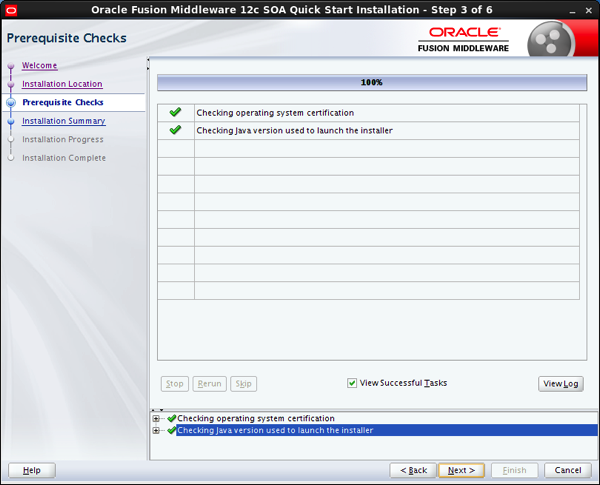
Soa step3of6
6. Click Next.
Soa step4of6
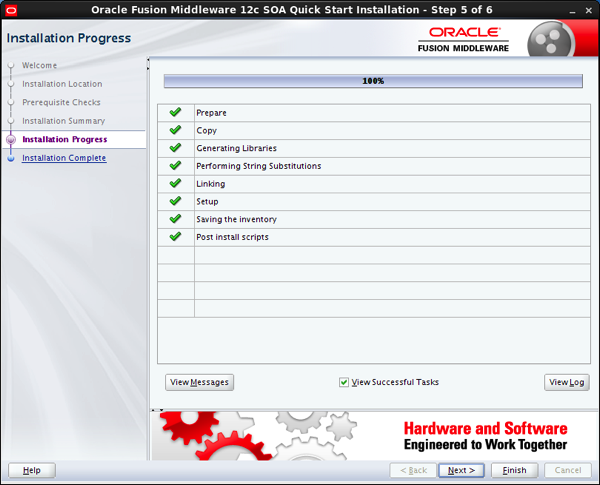
7. Click Install to start the installation. This will only take a few minutes and after that successful installation should be confirmed with the following screen:
Soa step5of6
8. Click Next.
Soa step6of6
9. Leave the Start JDeveloper check box selected, so that the JDeveloper Integrated Development Environment is automatically started, and click Finish.
10. JDeveloper launches and after a few seconds, the Select Role screen should show up.
Jdev select role
11. Select the StudioDeveloper role and click OK.
12. When prompted, say No to import preferences from a previous JDeveloper installation. The JDeveloper IDE with the Start Page should show up.
Jdev
13. To launch the integrated WebLogic Server, chose Run from the main menu and then selectStart Server Instance from the drop-down menu.
Run menu


14. The first time you launch the server instance, you will be prompted to enter a password for your default domain. Enter welcome1 into the Password and Confirm Password field and leave the other fields on the default.
Create default domain


15. Click OK to launch the integrated server. This will take several minutes.
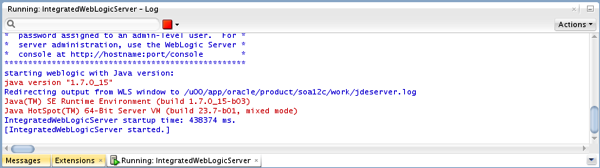
You can track the server’s launch in the Messages window pane. This window should automatically open at the bottom of the JDeveloper screen. If it is not there, you can open it by selecting Window from the top bar menu and Log from the drop-down menu.
When you see the following messages appear in the log, the Integrated WebLogic Server has launched successfully.
soa-console


 The Oracle SOA Suite Development environment is now ready to use. 
Click here to see the illustration of Oracle BPM 12c installation.